Adobe Photoshop
Edit every layer.
Open organized raster layers for faster color adjustments, compositing, and production edits.

Move your Syncraft output into the tools and formats your production process already uses.
Adobe Photoshop
Open organized raster layers for faster color adjustments, compositing, and production edits.
Adobe Illustrator
Continue working with clean, scalable vector paths without sacrificing output quality.

CorelDRAW
Import your exported SVG for layout refinement, artwork cleanup, and print preparation.
Production Delivery
Export a ready-to-share PNG or download the complete project files in one ZIP package.
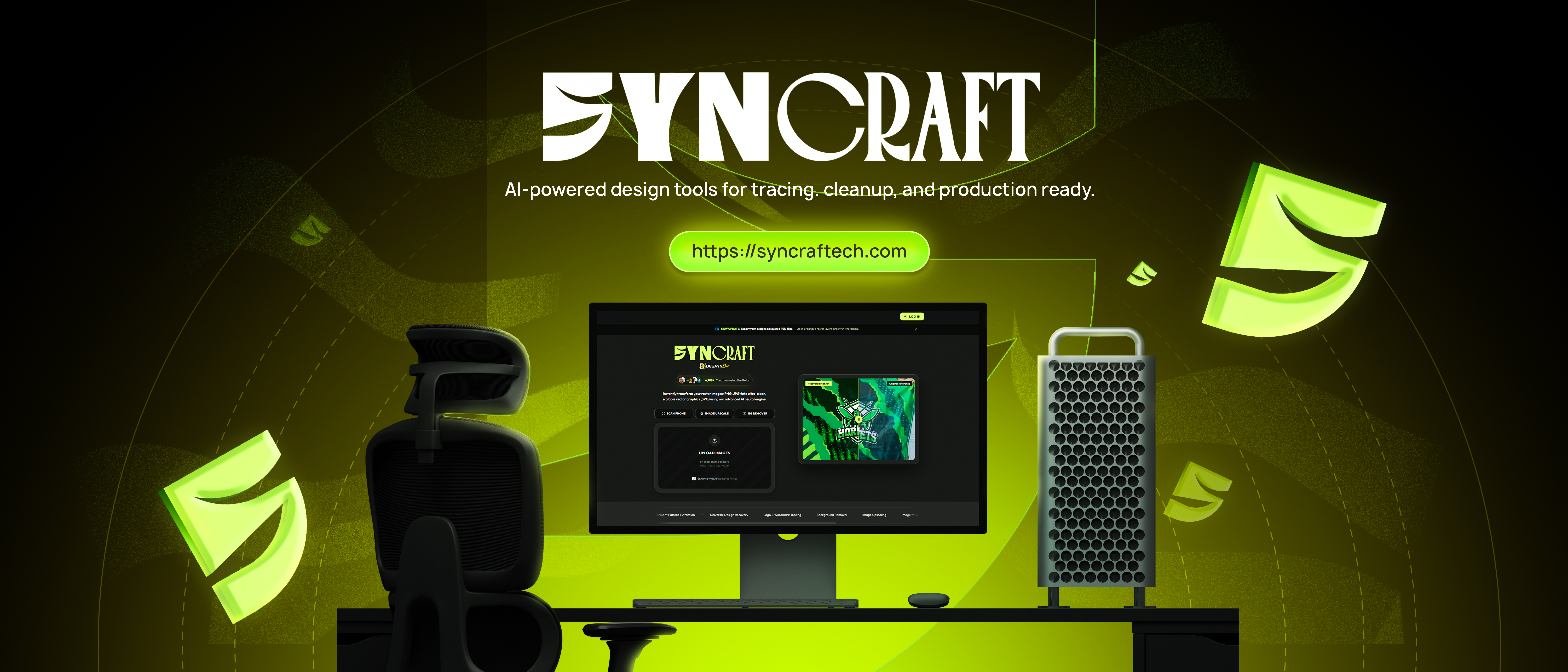
Our advanced AI handles the complex tracing process for you. No manual pen tool required.
Vectorization of raster images is done by converting pixel color information into simple geometric objects. The most common variant is looking over edge detection areas of the same or similar brightness or color, which are then expressed as graphic primitives like lines, circles, and curves.
A Raster graphics image is a rectangular grid of pixels, in which each pixel (or point) has an associated color value. Changing the size of the raster image mostly results in loss of apparent quality.
examples: photos
Vector graphics are not based on pixels but on primitives such as points, lines, curves which are represented by mathematical expressions. Without a loss in quality, vector graphics are easily scalable and rotatable.
examples: cliparts, logos, tattoos, decals, stickers, t-shirt designs
Convert supported raster images into clean, scalable SVG files for editing and print preparation. AI results vary with source quality, so review paths, colors, text, and fine details before production.
Recover visible artwork from banners, labels, packaging, decals, and other physical surfaces. Syncraft corrects photographed perspective, folds, and distortion while preserving supported logos, text, colors, and pattern detail.
See the workflow in action
Review real examples, confirm the formats you need, and understand how your files are handled before you start.
Compare the supplied reference with Syncraft's recovered output in the interactive before-and-after gallery.
Explore the samplesMove from preview to editable SVG, high-resolution PNG, transparent PNG, or a packaged ZIP export.
Try your own artworkYou keep ownership of your uploaded artwork, with project files scheduled for deletion after three days.
Review our privacy policyNeed to know
Quick answers about tools, exports, credits, and your account.
Extract garment patterns and sublimation artwork, recover designs from photographed surfaces with Universal Design Recovery, and trace logos or wordmarks into vectors. You can also remove backgrounds, upscale images, and use Extend Design to expand artwork in your workspace.
Choose Continue with Google to sign in or create an account. Complete the security check and accept the Terms and Privacy Policy before continuing.
Start with a clear image such as a PNG or JPG. Depending on the tool and completed processing steps, you can download a Vector SVG, a raster PNG, a layered PSD, or a ZIP bundle of available project files. Background removal produces a transparent PNG.
Yes. Generate the Vector SVG first, then choose Export as PSD in your workspace. Syncraft prepares a layered Photoshop file from the generated artwork. Layer structure depends on the design; it does not restore the original source file or guarantee editable text.
Syncraft uses prepaid credits. Tracing, background removal, image upscaling, and Extend Design each cost 12 credits per run. Universal Design Recovery costs 24 credits per run. Check the displayed cost before starting an operation.
Open the credit top-up menu, choose a package, and pay through QR Ph using a supported wallet or banking app, such as GCash or Maya. Credits are added after payment confirmation without uploading a receipt. Card / International checkout is available when enabled; the payment menu shows its current availability.
Yes. Use Remove Background for a transparent cutout, or Image Upscale to enlarge an image. These tools are available separately, so you can use them without generating a vector.
If your project already has a processed image but no SVG, use Retry Vector SVG (Free) in the workspace. This retries the vector step without charging for a new full generation.
Eligible failed processing runs return the charged credits to your balance automatically. If a processed image is available but vector generation fails, try the free vector retry. If credits remain deducted after an error, contact support with your project details.
Upload a sharp, well-lit image and crop closely around the artwork you want to recover. Choose the tool that matches your image, then review the result before printing. Blurry details, folds, and hidden areas can affect accuracy.
Project files are available in your personal history and scheduled for automatic deletion from active cloud storage within 3 days of creation. Download your uploads and finished exports before then; project history is temporary storage.